

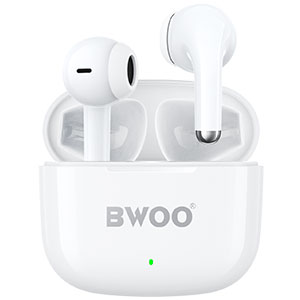



Wireless headphones have become an essential part of modern life - whether for music, calls, workouts, or gaming. However, as their popularity grows, so do concerns about safety. Many people wonder: Are wireless headphones harmful? Do they emit radiation that can affect our health?
This article explores the science behind these questions, clarifies common misconceptions, and offers practical tips for safe and healthy headphone use.
Do Wireless Headphones Emit Radiation?
Yes, wireless headphones use BT technology, which emits a very low level of non-ionizing radiofrequency (RF) radiation. This type of radiation is also used by Wi-Fi routers and mobile phones. The energy levels produced by BT devices are extremely weak - much lower than those emitted by smartphones or microwave ovens.
According to international safety standards (such as those from the World Health Organization (WHO) and U.S. Food and Drug Administration (FDA)), BT radiation falls well below the limits considered harmful to human health.
Why Is Radiation Linked to Cancer?
Radiation becomes a concern when it is ionizing - meaning it has enough energy to damage DNA and potentially cause cancer. Examples include X-rays and gamma rays.
BT radiation, however, is non-ionizing, which means it lacks the energy to break chemical bonds or alter cell structures. While some studies have investigated possible links between long-term exposure to RF radiation and cancer risk, these results remain inconsistent and largely inconclusive.
What Does Scientific Research Say?
So far, no credible scientific evidence has confirmed a link between BT devices and cancer or other serious health effects.
Major health organizations, including the WHO, FDA, and Centers for Disease Control and Prevention (CDC), have reviewed extensive research and concluded that the levels of radiation emitted by wireless headphones are too low to cause harm.
In short: current scientific consensus suggests that wireless headphones are safe to use when operated under normal conditions.
The Real Concern: Hearing Health
While radiation is not a proven risk, hearing damage from excessive volume or prolonged listening is a real concern.
To protect your hearing:
1. Keep the volume below 60% of maximum.
2. Take listening breaks every hour to give your ears rest.
3. Use headphones with Active Noise Cancellation (ANC) to enjoy music clearly at lower volumes.
4. Choose ergonomic designs that fit comfortably and block external noise effectively.
Choose BWOO for Safe and Smart Listening
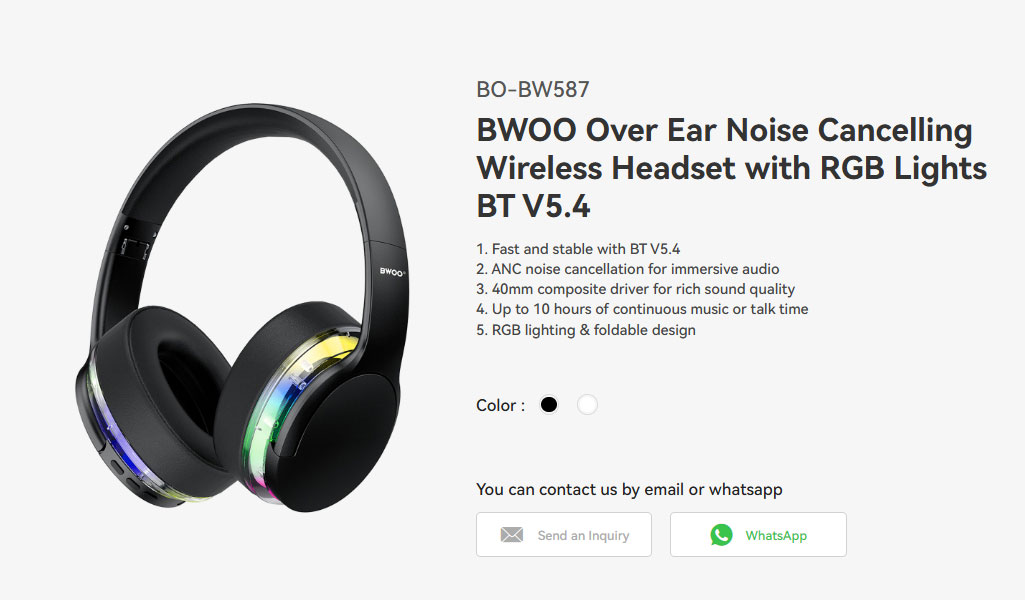
At BWOO, we prioritize user safety and comfort. Our latest wireless headphone model, BWOO BO-BW587, features advanced ANC technology, allowing you to enjoy crystal-clear audio without turning up the volume.
With BWOO, you can experience premium sound while protecting your hearing - because your health always comes first.
Conclusion
Scientific evidence shows that the tiny amount of radiation emitted by wireless headphones poses no threat to human health. The primary safety concern lies in listening habits - high volume and long listening times can damage hearing over time.
By following safe listening practices and choosing trusted brands like BWOO, you can fully enjoy the benefits of wireless audio while maintaining your well-being.
Related readings:
How do Wireless Earphones Work?


