




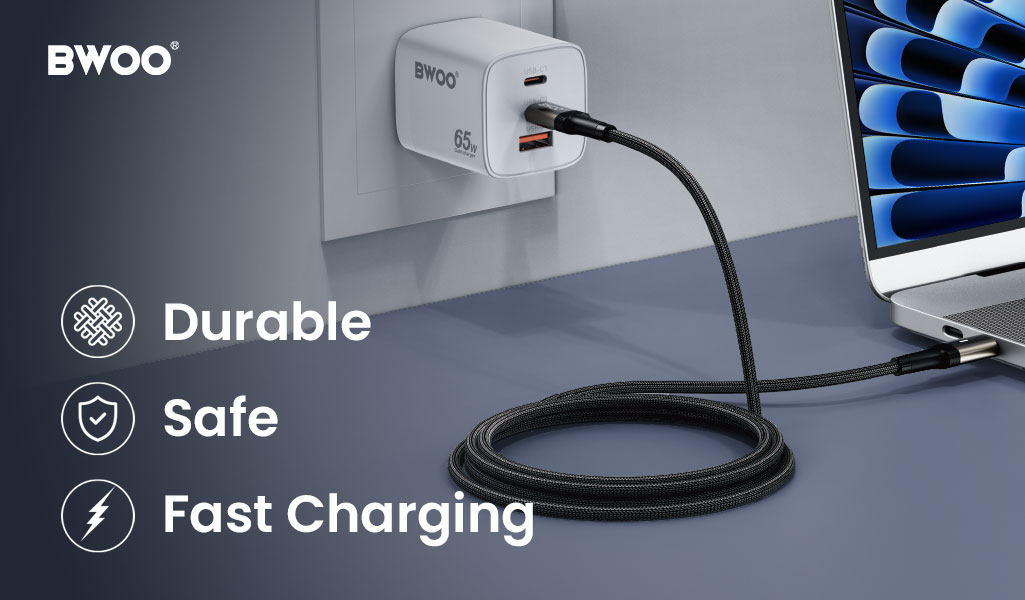
When choosing a charging cable, many users focus almost entirely on what’s visible:
Is the jacket braided or plastic? Is the cable thick enough?
This approach is understandable—but technically flawed.
A cable’s outer appearance tells only part of the story. In real-world use, most cable failures are not caused by surface wear, but by internal structural weaknesses that cannot be seen from the outside.
A truly durable charging cable must not only resist external pulling and bending, but also rely on well-engineered internal components to ensure long-term reliability.
In this article, we break down the four core internal factors that determine a cable’s lifespan, helping consumers and professional buyers identify what really matters when selecting a long-lasting charging cable.
Factor 1: Conductor Material and Wire Gauge
Pure Copper vs. Copper-Clad Aluminum (CCA)
One of the most critical—and most misunderstood—components of a charging cable is the conductor itself.
Pure copper conductors offer low electrical resistance, excellent flexibility, and strong fatigue resistance.
Copper-clad aluminum (CCA), commonly used in low-cost cables, has significantly higher resistance and is far more prone to oxidation and breakage over time.
As aluminum fatigues more quickly under repeated bending, CCA cables often fail internally long before the jacket shows visible damage.
BWOO standard:
BWOO cables use high-purity tinned copper conductors, which provide stable conductivity while significantly improving oxidation resistance and long-term durability.
Why AWG (American Wire Gauge) Matters
Wire gauge directly affects both electrical performance and mechanical strength.
From a physics standpoint, resistance follows the formula:
R=ρ*A/L
Where:
R = resistance
ρ = material resistivity
L = conductor length
A = cross-sectional area
Increasing the conductor’s cross-sectional area (lower AWG number) not only reduces resistance—allowing faster, more stable charging—but also improves tensile strength, making the cable far less susceptible to fatigue fractures during repeated bending.
Factor 2: Tensile Reinforcement Fibers
The Invisible Protector Inside the Cable
High-quality charging cables often contain tensile reinforcement fibers, such as aramid fiber or Kevlar, braided alongside the conductors.
These fibers serve a critical structural role:
They absorb and distribute pulling forces
They prevent copper conductors from stretching or snapping
They maintain internal alignment under stress
When a cable is suddenly yanked, these high-strength fibers take the load—not the delicate copper wires.
In contrast, cables without reinforcement fibers may appear intact externally, but once the jacket is compromised, the internal conductors experience uneven stress and fail rapidly.
Factor 3: Shielding Structure
Shielding as Structural Armor
Shielding layers are often discussed only in the context of electromagnetic interference (EMI), but their mechanical role is equally important.
Aluminum foil layers provide uniform coverage and signal stability
Metal braided shields act like chainmail, distributing bending stress across the cable’s length
This layered structure significantly reduces localized stress concentration, especially near the connector area.
BWOO cable architecture:
BWOO employs dual-layer shielding, combining aluminum foil with 16-strand or 32-strand metal braiding, reinforcing both signal integrity and the cable’s overall structural cohesion.
Factor 4: Soldering Quality and Connector Reinforcement
Where Most Cables Fail
Industry data shows that over 90% of cable failures occur at the connector-to-cable junction.
This makes soldering quality and reinforcement design non-negotiable.
Internal Overmolding (Secondary Injection)
Low-end cables often rely on a single outer shell. Premium cables use secondary internal overmolding, encapsulating solder joints in a rigid protective structure that:
Prevents micro-movements
Reduces stress on solder points
Protects against vibration and repeated insertion cycles
Laser Welding vs. Manual Soldering
Automated laser welding offers key advantages over manual soldering:
Consistent weld depth and strength
Superior vibration resistance
Far lower risk of cold joints or early detachment
This ensures connectors remain electrically and mechanically stable even after thousands of plug-unplug cycles.
B2B Procurement Insight: Why Internal Design Saves Money Long-Term
For distributors, retailers, and brand owners, focusing on internal cable quality is not just a technical decision—it’s a financial one.
Lower RMA and After-Sales Costs
Structurally sound cables dramatically reduce natural failure rates, minimizing returns and warranty claims.
Stronger Brand Trust
When customers find that a cable still performs reliably after a year of daily use, it builds lasting confidence in your brand.
BWOO quality commitment:
Every BWOO cable batch undergoes tensile stress testing and repeated bend-cycle testing in our laboratory. We don’t just sell cables—we deliver low-maintenance reliability for long-term business sustainability.
Conclusion: True Durability Starts From the Inside
When evaluating charging cables:
The jacket tells you about feel
The internal structure tells you about lifespan
High-purity copper conductors, tensile reinforcement fibers, multi-layer shielding, and reinforced solder joints are not optional features—they are the foundation of real durability.
A cable that is strong inside will last outside.
Related readings:
Does a Longer Charging Cable Mean Slower Speed?


