








USB Color Convention

2026-01-26 15:05
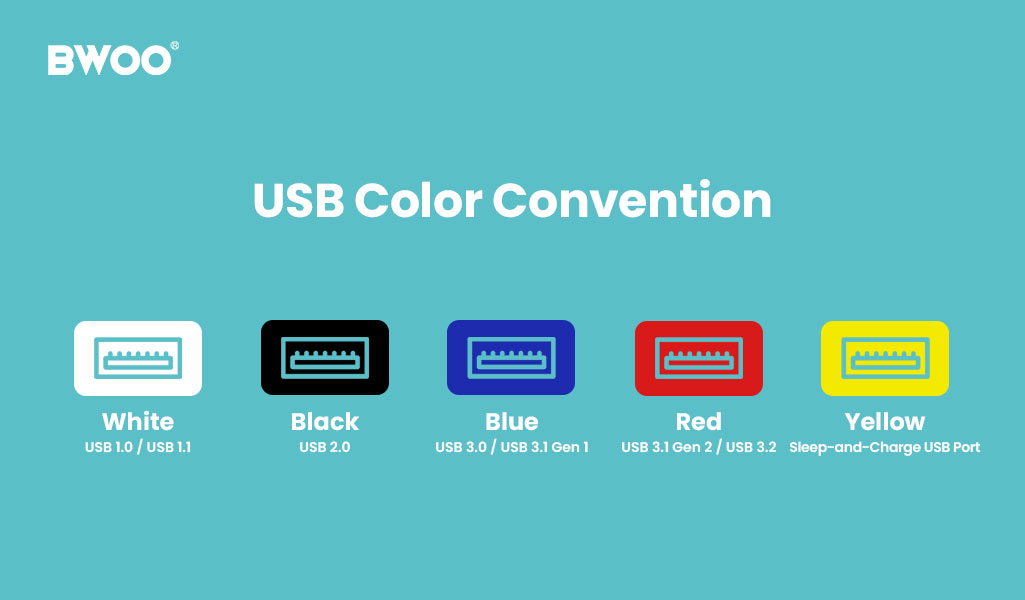
Careful users often notice that the inside of USB ports on computers, chargers, or hubs comes in different colors.
A common question follows: Which port should I use for my mouse, external hard drive, or device charging?
These colors are not decorative. Instead, they act as a widely accepted—though not mandatory—visual identifier of USB performance levels.
This article explains the USB color coding system, helping you quickly understand port capabilities and avoid unnecessary speed bottlenecks.
Common USB Port Colors and Their Meanings
White (USB 1.0 / USB 1.1) — A Legacy Standard
Meaning: The earliest generation of USB interfaces
Speed: Up to 12 Mbps
Where seen: Very old computers or extremely basic peripherals
Today, white USB ports are rarely used and mainly exist for backward compatibility.
Black (USB 2.0) — The Universal Workhorse
Meaning: The most widely adopted USB standard
Speed: Up to 480 Mbps
Recommended use:
Mouse
Keyboard
Printer
Basic accessories
USB 2.0 remains reliable for low-speed, high-compatibility devices.
Blue (USB 3.0 / USB 3.1 Gen 1) — Entering the High-Speed Era
Meaning: SuperSpeed USB
Speed: Up to 5 Gbps (over 10× faster than USB 2.0)
Recommended use:
USB flash drives
External hard drives
Data-heavy peripherals
Blue ports are the preferred choice for everyday data transfer.
Red or Orange (USB 3.1 Gen 2 / USB 3.2) — Performance-Focused Ports
Meaning: SuperSpeed+ USB
Speed: 10 Gbps or higher
Additional traits:
Stronger power delivery
Designed for high-performance devices
Recommended use:
External SSDs
Professional docking stations
High-speed data workflows
These ports are commonly found on premium laptops and advanced USB hubs.
Yellow (Sleep-and-Charge USB Port)
Special function: Provides power even when the computer is off or in sleep mode
Typical use:
Smartphone charging
Powering accessories overnight
This port prioritizes power availability, not data speed.
Consumer Misconception: Does Color Always Guarantee Speed?
Not necessarily.
USB color coding is not enforced by the USB Implementers Forum (USB-IF).
Some low-cost manufacturers may use misleading colors that do not reflect actual performance.
How to Verify a USB Port's True Capability
Look for markings near the port (e.g., "SS" for SuperSpeed)
Check the device's technical specifications or user manual
Color is a helpful guide—but not the final authority.
Practical Buying Advice: Matching Ports to Your Usage
Office users:
1 blue port for data transfer
2 black ports for keyboard and mouse
Photography & design professionals:
USB hubs or docks with red (10 Gbps) ports are essential for fast file handling
Choosing the right port configuration directly improves workflow efficiency.
Wherse USB Color Coding Commonly Appears
USB color indicators are most often found on:
Desktop and laptop computers
USB chargers and power strips
Multi-port USB hubs and docking stations
Manufacturers use color coding to help users quickly distinguish performance levels.
Conclusion: Color Is a Guide, Quality Is the Guarantee
Before plugging in your next device, take a second to check the port color—it can save significant transfer time.
However, long-term performance and safety depend on high-quality hardware and reliable engineering.
As a professional consumer electronics manufacturer, BWOO designs USB chargers, cables, and hubs with clearly defined performance standards, ensuring consistent speed, stable power delivery, and dependable compatibility across devices.


Comment
Leave a Reply
Your email address will not be published. Required. Required fields are marked*


Comment
There are no comments yet!