




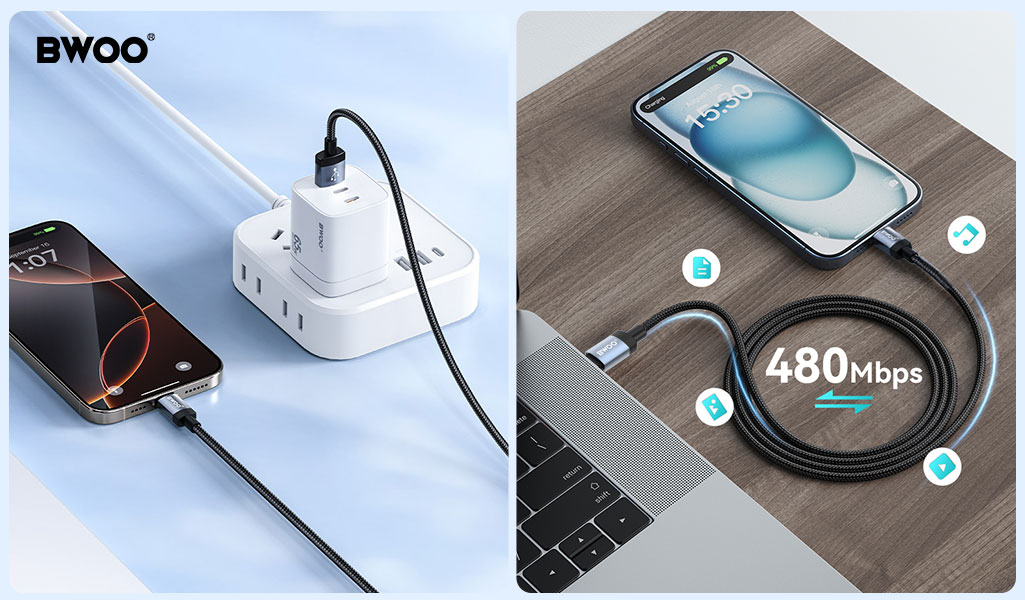
In daily use, many users encounter a frustrating issue: you connect your phone to a computer to transfer photos or use Android Auto, but the device only shows "Charging," and the computer doesn't recognize it.
The cable looks identical to others. So why does it only charge but not transfer data?
The truth lies inside the cable. This article reveals the physical structure differences, industry realities, and quick troubleshooting steps—while also showing why BWOO full-feature data cables deliver reliable performance through professional wire specifications and transmission standards.
Inside the Cable: The Missing "Data Channel"
At first glance, most USB cables look the same. Internally, however, they may be completely different.
The 4 Basic USB 2.0 Wires
A standard USB 2.0 cable contains four internal conductors:
VCC (Red) – Power supply
GND (Black) – Ground
D+ (Green) – Data positive
D- (White) – Data negative
The red and black wires handle charging.
The green and white wires are responsible for data transmission.
The Reality of "Charging-Only" Cables
Many low-cost or bundled cables remove the D+ and D– data wires to reduce production costs.
Result:
There is physically no data pathway inside the cable. The computer cannot detect your device because the signal lines simply do not exist.
No software setting can fix a hardware limitation.
Why Do "Charging-Only" Cables Exist?
If data transfer is so important, why are charging-only cables still on the market?
1. Cost Reduction
Removing two copper cores and shielding layers significantly lowers manufacturing cost in mass production. These cables are often sold at ultra-low prices or included as promotional accessories.
2. Security Design (Public Charging Protection)
Some public charging stations intentionally disable data lines to prevent data hijacking (commonly known as "Juice Jacking"). In such cases, charging-only cables are designed for safety.
3. Power-Only Applications
Cables used for small fans, LED lights, power banks, or desk lamps often do not require data transfer at all.
Not all cables are meant to sync devices.
Quick Troubleshooting: Why Did Your Data Cable Suddenly Stop Working?
If your cable used to transfer files but now only charges, the issue may be one of the following:
Physical Damage
Data wires (D+/D–) are thinner and more fragile than power lines. Frequent bending may break the internal signal wires while the thicker power wires remain intact.
Symptom: Charging works. File transfer fails.
Port Contamination
Dust or oxidation in the phone port or connector can prevent proper contact on the data pins.
Protocol Incompatibility
Some high-current fast charging cables focus on extreme power delivery. If poorly designed, they may interfere with certain data synchronization standards.
Not all fast charging cables are built with balanced data capability.
How to Choose a True Full-Function Data Cable
To avoid frustration, follow these professional selection tips:
Check Product Labeling
Look for markings such as:
"Data Transfer"
USB High-Speed certification
Transmission speed specification
Confirm Transmission Standard
At minimum, choose cables supporting:
USB 2.0 (480Mbps)
Or higher standards such as USB 3.0 / 3.2 if required
Higher specifications ensure stable file transfer, device recognition, and compatibility.
Choose Professional Manufacturing Standards
BWOO data cables are engineered to balance charging efficiency and transmission stability:
Thickened tinned copper cores – Improve conductivity for both power and data
Aluminum foil shielding layer – Reduces electromagnetic interference
SR reinforcement design – Prevents internal signal wire breakage from bending
Strict QC testing – Ensures plug-and-play reliability
A high-quality cable should never force you to choose between charging speed and data stability.
Conclusion:
When a USB cable only charges but fails to transfer files, the problem is usually structural—not technical.
Understanding the internal wiring helps you avoid low-cost traps and choose products designed for full functionality.
A cable may look simple, but inside it determines your efficiency, safety, and productivity.
Choose wisely. Choose professional-grade performance.


